EDI
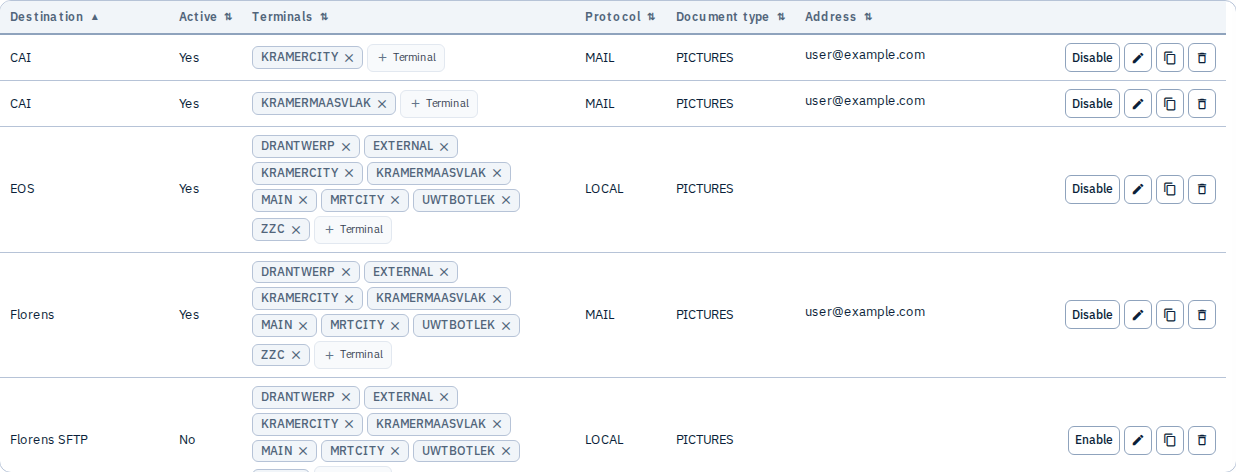
Configure EDI delivery destinations used when sending inspection pictures to depot systems, shipping lines, email recipients, or custom endpoints.
EDI configuration requires the Admin role (or SysAdmin). Other tenant administrators may see the Admin menu but not the EDI item. Backend /api/v1/tenant-admin/edi endpoints are Admin-only.
What you can do
- Add destinations with protocol, connection fields, terminal scope, and Params
- Name destinations (uppercase
DEST_NAME) for selection in the Send dialog and mobile actions - Scope terminals — one row per terminal, or
ALLfor every terminal - Enable or disable destinations without deleting history
- Test FTP-family connections from the editor
- Search and filter the destination list
Create a destination (walkthrough)
- Open Admin → EDI
- Click Add EDI
- Enter a destination name (stored uppercase, e.g.
DEPOT_FTP) - Choose terminals — pick specific codes or All
- Select a protocol (see table below)
- Fill protocol-specific fields (host, credentials, email addresses, etc.)
- Optionally set Params (INI block) — see EDI Params reference
- Ensure Active is checked, then Save
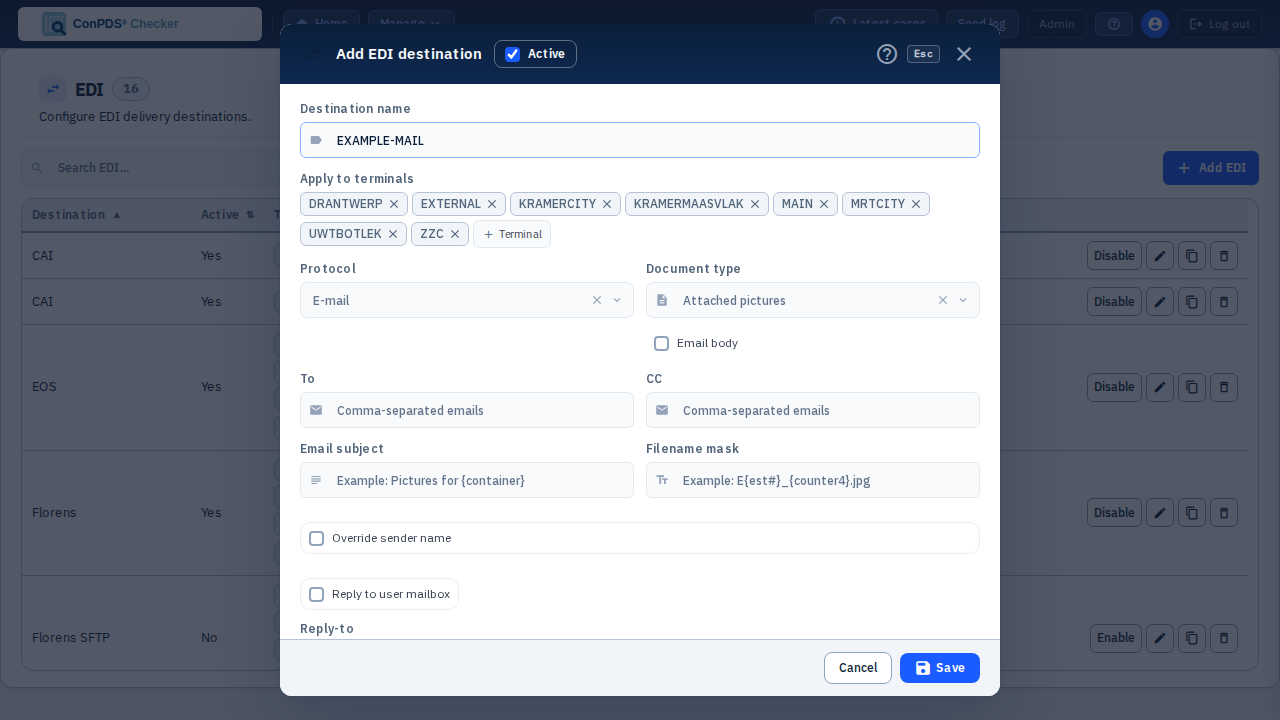
Document types (MAIL only)
| Value | Meaning |
|---|---|
Attached pictures (PICTURES) | Email includes picture files as attachments |
Picture link (PICTURE_LINK) | Email contains links to pictures instead of attachments |
Protocols and fields
| Protocol | Label | Typical connection fields |
|---|---|---|
LOCAL | Local delivery | Remote directory, filename mask |
EOS | EOS API | Filename mask; Params (PICTURE_DATE_DAYS, etc.) |
MAIL | To, CC, subject, filename mask, optional body; document type | |
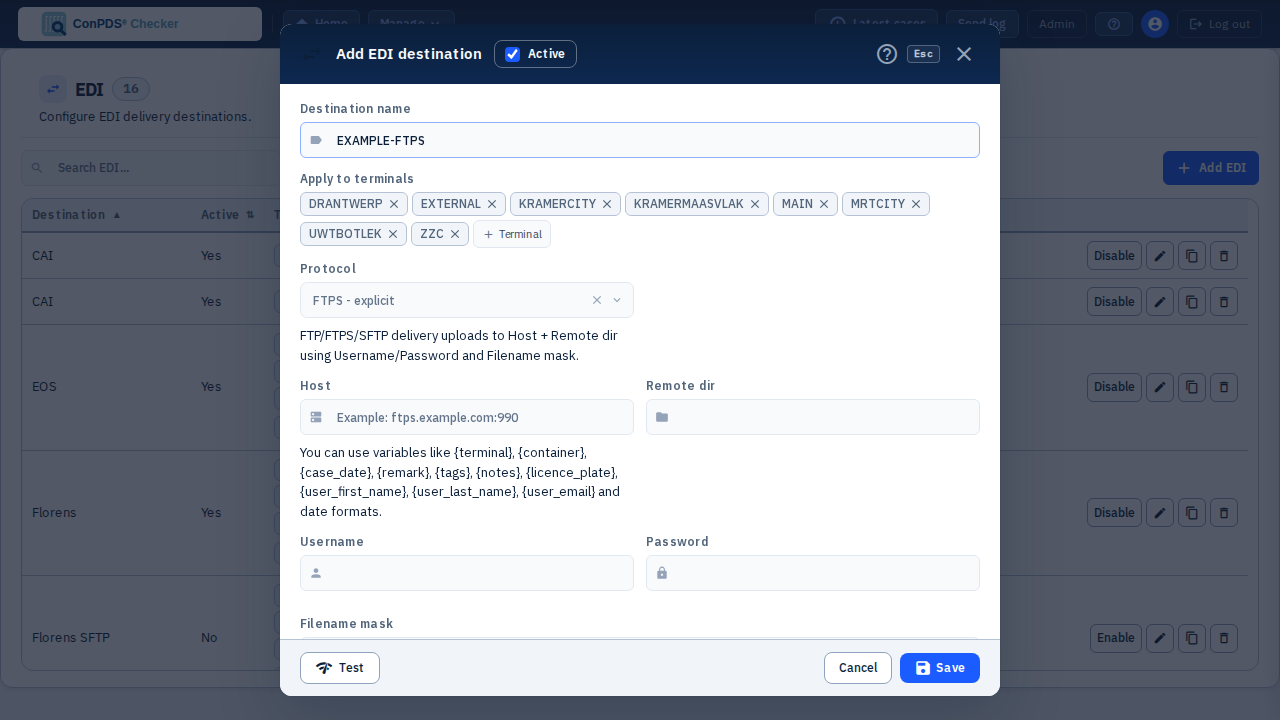
FTP | FTP | Host (host or host:port), remote dir, username, password, filename mask |
FTP2 | FTP stream | Same as FTP |
FTPS | FTPS — explicit | Same as FTP |
FTPS2 | FTPS — implicit | Same as FTP |
SFTP | SFTP | Same as FTP; host-key Params in Params reference |
SFTP2 | SFTP stream | Same as SFTP |
API | Maersk AEMS API | API address, client ID, client secret, shop code (sender) |
EOS and API are both HTTP/REST API integrations — the destination logs in and posts pictures to a vendor API over HTTPS, unlike the file-transfer (FTP/FTP2/FTPS/FTPS2/SFTP/SFTP2) or MAIL/LOCAL protocols. They remain separate protocol values with different vendors, credentials, and fields — EOS talks to the EOS Advantage pixel API (credentials come from environment configuration, not the destination editor — see the Authentication summary below), while API talks to Maersk AEMS (client ID/secret entered in the editor).
Authentication summary
| Protocol family | Credentials |
|---|---|
| FTP / FTPS / SFTP | Username + password (password hidden after save; use Show password to re-enter) |
No SMTP password here — outbound mail uses SMTP chain or SMTP_CONFIG_PICTURES in Params | |
| API (AEMS) | OAuth-style client ID and client secret |
| EOS | No credentials in the destination editor — the EOS API login (username/password) is server-side environment configuration, shared across all EOS destinations on the install |
| LOCAL | No credentials at all (writes to a local/mounted directory) |
MAIL-specific options
- Override sender name — use current admin display name + tenant name
- Reply-To — fixed address or current user's mailbox
- Include email body — optional body with
{placeholder}support
Pin a specific SMTP config for this destination only:
SMTP_CONFIG_PICTURES=MY_CONFIG_KEY
See SMTP and EDI Params.
How destinations are used
| Channel | Behaviour |
|---|---|
| Gallery Send | Users pick destinations in Send to Destinations; required fields appear when Params request estimate ID/date/body |
| Auto-send | Terminals, Tags, and Notes can link auto destinations after upload |
| Mobile app | /api/v1/mobile/tags returns actions[] as TERMINAL§DEST_NAME; upload action triggers auto-send |
| Mail ingestion | Mail rules and Code mappings reference destination names |
| Send log | Outcomes appear in the Send log |
Params and placeholders
Advanced behaviour (resize, chunk size, dry-run, SFTP host keys, AEMS filters) is controlled in the Params textarea. Full key list, types, and placeholder reference:
Tips
- Use descriptive destination names (
LINE_PROD,DEPOT_TEST) - Test with
DRY_RUN=1in Params before enabling auto-send on busy terminals - Coordinate credential rotation with IT — update passwords before old ones expire
- For AEMS Gallery behaviour, see AEMS send workflow
See also: SMTP, Code mappings, Send — Destinations