Processing State
Complete guide to monitoring and managing email processing activity.
The Processing State page provides visibility into how emails are processed by your mail rules. Every matched email creates a processing state record from arrival through completion.
Table of contents
- Introduction
- Overview
- Processing states table
- Understanding status and results
- View results report
- Manual polling
- Monitoring and progress
- Downloading logs
- Advanced actions
- Troubleshooting
Introduction
Use this page to monitor processing activity, view detailed logs, manually trigger mailbox polling, and troubleshoot issues. It is the central dashboard for automated email processing.
What you can do
- Filter by mailbox, date range, and status
- Search subject, sender, and other fields
- View results — structured processing report for a completed or failed run (same layout style as mailbox dry-run)
- Download logs for each processing run
- Run now / Force run to poll mailboxes immediately
- Process now / Stop / Delete record per message
Overview
When an email arrives in a configured mailbox:
- The system polls for unread emails (automatically or manually)
- Each unread email is matched against Mail rules
- If a rule matches, a processing state is created with status pending
- Actions run (ingest images, parse spreadsheet, send EDI, etc.)
- The processing state updates with progress and final result
- Detailed logs are generated for each step
Processing states table
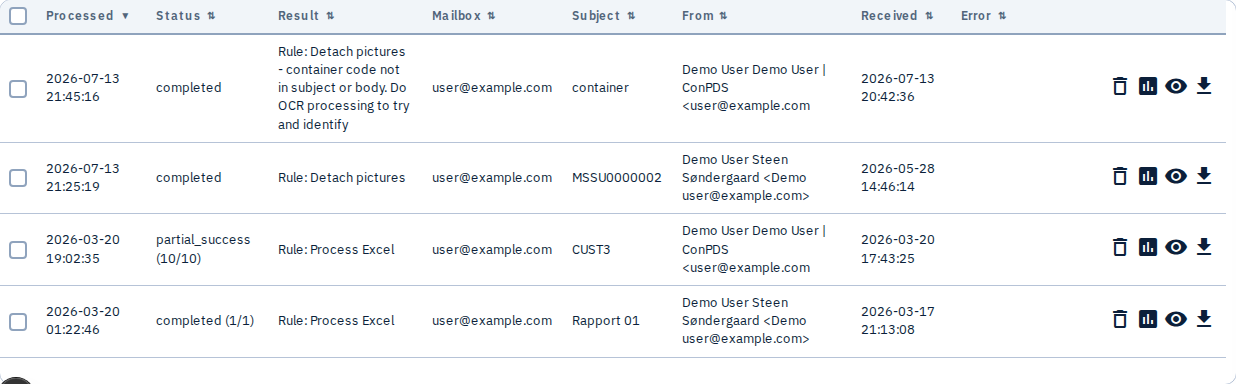
The table shows processed emails, newest first by default (infinite scroll, 25 records initially).
Table columns
| Column | Description |
|---|---|
| Status | Pending → Processing → Completed / Failed / Partial success / Poison / Waiting children (sortable) |
| Result | Matched rule name or error message |
| Mailbox | Source mailbox (filterable) |
| Subject | Email subject (sortable) |
| From | Sender address (sortable) |
| Received | When the email was received (tenant timezone) |
| Processed | When processing completed (default sort: newest first) |
| Error | Error message if failed |
| Download | Download plain-text .log file |
Filtering and sorting
- Status filter — All, Pending, Processing, Completed, Failed, Waiting children, Poison, Partial success
- Mailbox filter — Specific mailbox
- Search — Text across subject, from, and other fields
- Column sorting — Click headers; click Processed to reset default sort
Understanding status and results
Processing status
| Status | Meaning |
|---|---|
| Pending | Queued, not started yet |
| Processing | In progress; may show steps like "Parsing spreadsheet" |
| Completed | Finished successfully |
| Failed | Error — check Error column and download logs |
| Partial success | Finished with mixed row/action outcomes (common for spreadsheet batches) |
| Waiting children | Waiting for child tasks (e.g. spreadsheet row chunks) |
| Poison | Permanently failed after retries — needs operator attention / delete-and-rerun |
Result column
- Rule name — When a mail rule matched and processed the email
- Error message — When processing failed
- Empty — When no rule matched
View results report
For rows in completed, failed, partial_success, or poison status, click the assessment (bar-chart) icon in the action column — View results.
The report modal summarises what actually happened for that message:
- Processing status chips (ingested picture count, pictures sent via EDI, failed actions)
- Matched rule name(s), extracted variables, and planned-vs-executed actions
- For
ingest_images: how many attachments were stored and case linkage when available - For
search_pictures_and_send_edi: destination (after anydestination_rewrite), terminals, and case dates involved - For
parse_spreadsheet: per-row outcomes with filters (success / failed / skipped) and text search across container, client, destination, and errors - Notification lines when a rule sent operator email
This is the live counterpart to Simulate mailbox (dry-run) — dry-run shows what would happen; View results shows what did happen after a real poll.
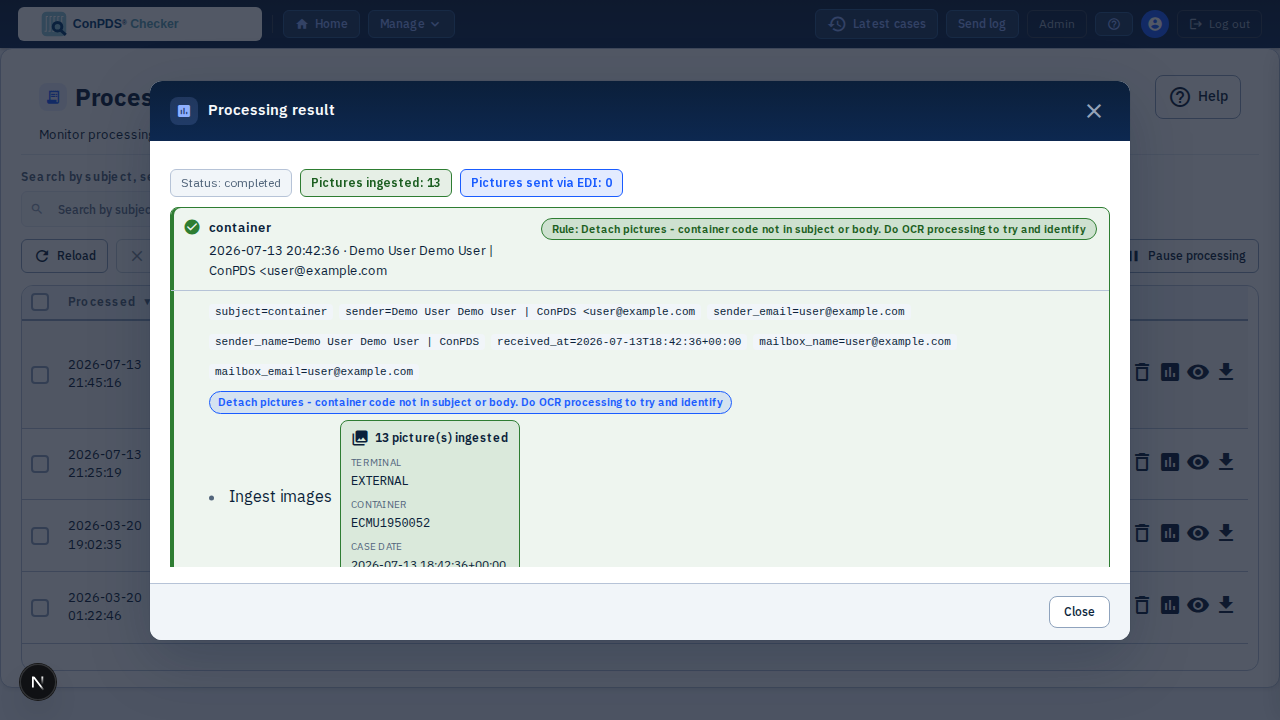
Use View logs / Download for the full chronological .log when the summary report is not enough.
Manual polling
Run now
- Select one or more mailboxes (or All mailboxes)
- Click Run now
- Unread emails are fetched immediately
- New rows appear as emails are processed
Run now respects poll locks and skips mailboxes already being polled. Safe to click multiple times.
Force run
Same as Run now, but clears existing poll locks first.
Force run may interrupt an ongoing poll and cause duplicate processing. Use when a mailbox appears stuck.
Monitoring and progress
Unread email counts
- Total unread across all mailboxes (e.g. "7 unread remaining")
- Per-mailbox counts update automatically
Processing indicator
- Processing badge — Count of emails currently processing
- Status updates — Rows update in real time
- Progress steps — Detailed status in the Status column
"Enqueued" message
After Run now or Force run, shows how many mailbox polls were queued. Disappears when polling completes.
Downloading logs
- Find the email in the table
- Click the download icon in the Download column
- Open the
.logfile in any text editor
Log file contents
- Message — From, subject, received time, attachment list
- Processing summary — Status, matched rules, child task counts, errors
- Chronological steps — Rule matching, extracts, EDI, spreadsheet rows, JSON details
What to look for when troubleshooting
- ERROR entries
- Which rule matched and why
- Action execution (ingest, parse, EDI)
- Code mapping lookups
- EDI send results
- Email notification delivery
Advanced actions
Pause / resume mail ingestion
- Pause — Stops automatic polling; manual Run now still works
- Resume — Restarts automatic polling
Pause during maintenance or rule testing. Remember to resume when done.
Clear poll lock
If a mailbox appears stuck:
- Open More actions
- Select mailbox under Clear poll lock
- Click Clear lock
Only clear locks when certain the mailbox is stuck. Clearing during an active poll may cause duplicates.
Process now (per message)
Play icon for pending, processing, and failed rows — enqueues that message's worker immediately.
- Not shown for completed, partial_success, poison, or waiting_children
- Blocked when mail ingestion is paused
- If no row exists yet, use Run now on the mailbox first
Stop (per message)
Stop icon marks the run as stopped by the operator.
Delete record (rerun from scratch)
Trash icon deletes the processing row, logs, and spreadsheet jobs. The email remains in the mailbox. If still unread, the next poll creates a fresh run.
Not available while processing or waiting_children — use Stop first.
Troubleshooting
Emails not appearing in the table
- Verify mailbox is active in Mailboxes
- Check mail rules are active
- Click Run now; then Process now on existing rows
- Check unread counts and mailbox connection
Emails stuck in Pending or Processing
- Wait — large emails or complex rules take time
- Check if ingestion is paused
- Review Error column and download logs
- Clear poll lock if stuck
Processing fails with errors
- Download the log file
- Verify mail rule JSON
- Check Code mappings for spreadsheets
- Verify EDI destinations are active
Retry spreadsheet processing after failure
- Keep the message unread
- Use Run now or Force run on the mailbox
- Fix duplicate
parse_spreadsheetrules before retrying
"Run now" doesn't process emails
- Check ingestion not paused
- Verify unread emails exist
- Try Force run or clear poll lock
- Test mailbox connection
- Verify active mail rules
Can't download log file
- Check browser download settings
- Logs may be incomplete for pending/processing states
See also: Mailboxes, Mail rules, Code mappings