Mailboxes
Complete guide to setting up and configuring mailbox connections for automated email processing.
Table of contents
- Introduction
- Microsoft Graph (Exchange Online) setup
- IMAP4 configuration
- General mailbox settings
- Best practices
- Troubleshooting
Introduction
Mailbox configurations define how the system connects to and processes emails from your mailboxes. You can configure mailboxes using two provider types:
- Microsoft Graph — For Microsoft 365 / Exchange Online mailboxes (recommended)
- IMAP4 — For standard IMAP mailboxes (Gmail, Outlook.com, custom IMAP servers, etc.)
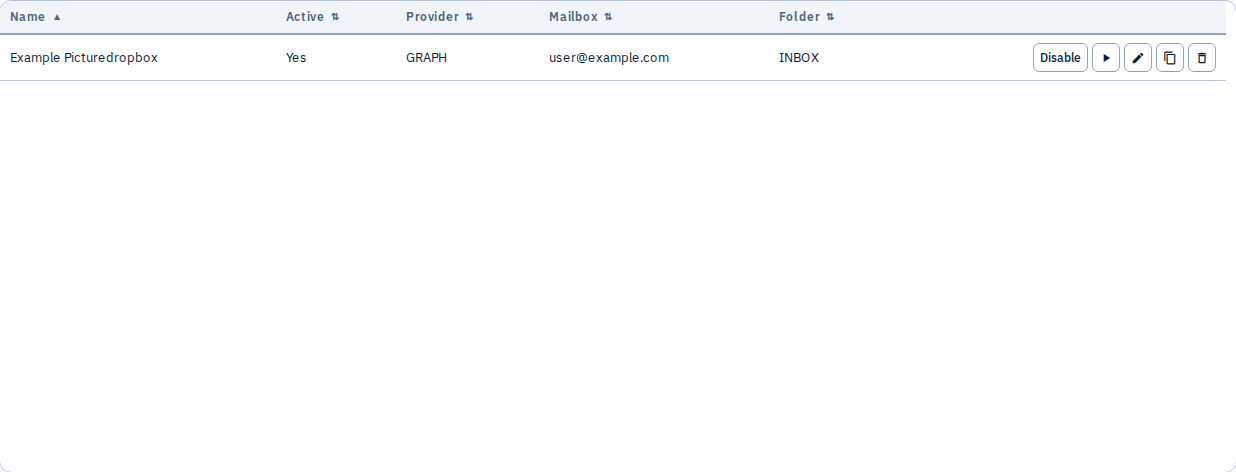
Each mailbox configuration includes connection settings, polling intervals, security options, and post-processing policies. The system automatically polls configured mailboxes at the specified interval and processes unread emails according to your Mail rules.
What you can do in the Admin UI
- Add mailboxes using Microsoft Graph or IMAP4
- Set polling interval — how often unread mail is fetched
- Choose default terminal — fallback when a rule does not specify one
- Enable or disable mailboxes
- Edit credentials and folder settings
- Configure ops report recipients — branded ingest summary emails after each finalized message
- Test connection before saving
- Run now — trigger an immediate poll for that mailbox
Microsoft Graph (Exchange Online) setup
Microsoft Graph is the recommended method for connecting to Exchange Online / Microsoft 365 mailboxes. ConPDS Checker uses the client credentials flow (application permissions): the app connects without a signed-in user.
- Azure / Microsoft Entra Global Administrator or Application Administrator (app registration + admin consent)
- Exchange Online Administrator (Application Access Policy)
- PowerShell with the Exchange Online Management module (
Install-Module ExchangeOnlineManagement) - The primary SMTP address of each shared or user mailbox you want ConPDS to read (e.g.
picturedropbox@example.com)
Complete all seven steps below in order. Skipping the Exchange Online policy steps is the most common reason Test connection returns 403 Forbidden even when Azure permissions look correct.
Overview
| Step | Where | Outcome |
|---|---|---|
| 1 | Azure Portal | App registration + client secret |
| 2 | Azure Portal | Mail.Read / Mail.ReadWrite application permissions with admin consent |
| 3 | Exchange Online PowerShell | Mail-enabled group listing allowed mailboxes |
| 4 | Exchange Online PowerShell | Application Access Policy tying the app to that group |
| 5 | Exchange Online PowerShell | Each mailbox added as a group member |
| 6 | PowerShell | Graph API test succeeds for every mailbox |
| 7 | ConPDS Checker Admin | Mailbox saved with Test connection = ok |
Add-MailboxPermission with the Application (client) IDExchange Online does not accept the Azure Application (client) ID in Add-MailboxPermission -User. That cmdlet expects a user or group identity and will fail with "User or group … wasn't found". For ConPDS Graph mailboxes, use an Application Access Policy (steps 3–5 below). This is Microsoft's supported model for app-only Graph mail access scoped to specific mailboxes.
Step 1 — Azure AD app registration
- Open Azure Portal → Microsoft Entra ID → App registrations → New registration.
- Name: e.g.
ConPDS Mailbox Access. - Supported account types: Accounts in this organizational directory only.
- Click Register.
- On Overview, copy and save:
- Directory (tenant) ID → ConPDS Graph tenant ID
- Application (client) ID → ConPDS Graph client ID
- Go to Certificates & secrets → New client secret → add a description and expiry (24 months recommended) → Add.
- Copy the secret Value immediately → ConPDS Graph client secret (shown only once).
Store the client secret securely. If it is lost or expires, create a new secret in Azure and update every ConPDS mailbox that uses this app.
Step 2 — API permissions and admin consent
ConPDS reads mail, marks messages as read, and may move them to folders after processing — all via application permissions (no user sign-in).
- In the app registration, open API permissions → Add a permission → Microsoft Graph → Application permissions (not Delegated).
- Add:
Mail.Read— list and read messagesMail.ReadWrite— mark as read and move messages (required for normal post-processing)
- Click Grant admin consent for [Your Organization] and confirm.
- Verify both permissions show status Granted for [Your Organization] with a green checkmark.
Application permissions are required for automated polling. Delegated permissions (e.g. User.Read) are for interactive sign-in and are not used by ConPDS mailbox ingest.
Step 3 — Mailbox access group
Create one mail-enabled group that lists every mailbox this app may access. The group itself is never used for sending mail — it is only the scope for the access policy.
Install-Module ExchangeOnlineManagement -Scope CurrentUser   # once
Connect-ExchangeOnline

New-DistributionGroup `
  -Name "ConpdsMailboxAccess" `
  -PrimarySmtpAddress "conpds-mailbox-access@example.com" `
  -ManagedBy "admin@example.com"
Replace admin@example.com with an Exchange administrator in your tenant. Pick a group SMTP address that does not conflict with existing recipients.
List the group (empty at first):
Get-DistributionGroupMember -Identity "ConpdsMailboxAccess" |
  Select-Object DisplayName, PrimarySmtpAddress
If you already have a group and policy (e.g. ConpdsMailboxAccess), skip to Step 5 to add another mailbox.
Step 4 — Application access policy
Link the Azure app to the group so it can only read mailboxes you explicitly allow (RestrictAccess).
New-ApplicationAccessPolicy `
  -AppId "YOUR-APPLICATION-CLIENT-ID" `
  -PolicyScopeGroupId "ConpdsMailboxAccess" `
  -AccessRight RestrictAccess `
  -Description "Restrict ConPDS Graph app to mailboxes in ConpdsMailboxAccess"
| Parameter | Value |
|---|---|
| AppId | Application (client) ID from Step 1 — not the secret, not the Enterprise Application object ID |
| PolicyScopeGroupId | Name or SMTP address of the group from Step 3 |
| AccessRight | RestrictAccess — app can access only mailboxes in the group |
Verify the policy exists:
Get-ApplicationAccessPolicy |
  Where-Object { $_.AppId -eq "YOUR-APPLICATION-CLIENT-ID" } |
  Format-List AppId, ScopeName, AccessRight, Description
With RestrictAccess, Graph returns 403 Forbidden for any mailbox not in the scope group — even if Azure admin consent is granted. This is intentional and limits blast radius if the client secret is ever leaked.
Create this policy once per app. Do not create a second policy for the same AppId; add mailboxes to the existing group instead.
Step 5 — Add mailboxes to the group
For each mailbox ConPDS should read (shared mailboxes and user mailboxes both work):
Add-DistributionGroupMember `
  -Identity "ConpdsMailboxAccess" `
  -Member "picturedropbox@example.com"
Use the mailbox primary SMTP address:
Get-Mailbox picturedropbox@example.com |
  Select-Object Name, PrimarySmtpAddress, RecipientTypeDetails
Confirm membership:
Get-DistributionGroupMember -Identity "ConpdsMailboxAccess" |
  Select-Object DisplayName, PrimarySmtpAddress

Test-ApplicationAccessPolicy `
  -Identity "picturedropbox@example.com" `
  -AppId "YOUR-APPLICATION-CLIENT-ID"
AccessCheckResult must be Granted.
After adding a mailbox, Test-ApplicationAccessPolicy may show Granted immediately while Microsoft Graph still returns 403 with "Blocked by tenant configured AppOnly AccessPolicy settings" for up to several hours (occasionally up to ~24 hours). Mailboxes that were in the group when the policy was created usually work right away; newly added members are the ones most often affected.
If Graph still blocks after 30 minutes, remove and re-add the member, wait 30–60 minutes, and retest:
Remove-DistributionGroupMember `
  -Identity "ConpdsMailboxAccess" `
  -Member "picturedropbox@example.com" `
  -Confirm:$false
Start-Sleep -Seconds 120
Add-DistributionGroupMember `
  -Identity "ConpdsMailboxAccess" `
  -Member "picturedropbox@example.com"
Step 6 — Verify before ConPDS Checker
Run this for every mailbox before using Test connection in the admin UI. It uses the same client-credentials flow as ConPDS.
$tenantId     = "YOUR-DIRECTORY-TENANT-ID"
$clientId     = "YOUR-APPLICATION-CLIENT-ID"
$clientSecret = "YOUR-CLIENT-SECRET-VALUE"
$mailbox      = "picturedropbox@example.com"

# 1) Token
$token = (Invoke-RestMethod -Method POST `
  -Uri "https://login.microsoftonline.com/$tenantId/oauth2/v2.0/token" `
  -Body @{
    client_id     = $clientId
    client_secret = $clientSecret
    scope         = "https://graph.microsoft.com/.default"
    grant_type    = "client_credentials"
  }).access_token

# 2) Roles (optional — confirms admin consent)
$part = $token.Split('.')[1]
$part += '=' * ((4 - $part.Length % 4) % 4)
([Text.Encoding]::UTF8.GetString([Convert]::FromBase64String($part)) | ConvertFrom-Json).roles
# Expect: Mail.Read, Mail.ReadWrite (and possibly Mail.ReadBasic)

# 3) Same Graph call ConPDS uses in Test connection
$url = "https://graph.microsoft.com/v1.0/users/$([uri]::EscapeDataString($mailbox))/mailFolders/INBOX/messages?`$top=1"
try {
  Invoke-RestMethod -Uri $url -Headers @{ Authorization = "Bearer $token" }
  Write-Host "SUCCESS: Graph can read $mailbox"
} catch {
  $reader = [System.IO.StreamReader]::new($_.Exception.Response.GetResponseStream())
  Write-Host "FAILED:" $reader.ReadToEnd()
}
| Result | Meaning |
|---|---|
| Token request fails | Wrong tenant ID, client ID, or secret (or secret expired) |
Token OK but .roles empty | Admin consent not granted — repeat Step 2 |
| Roles OK but Graph 403 + AppOnly AccessPolicy | Mailbox not in scope group yet, or propagation delay — repeat Step 5 and wait |
Graph SUCCESS (data or empty value) | Ready for ConPDS — proceed to Step 7 |
Step 7 — Configure in ConPDS Checker
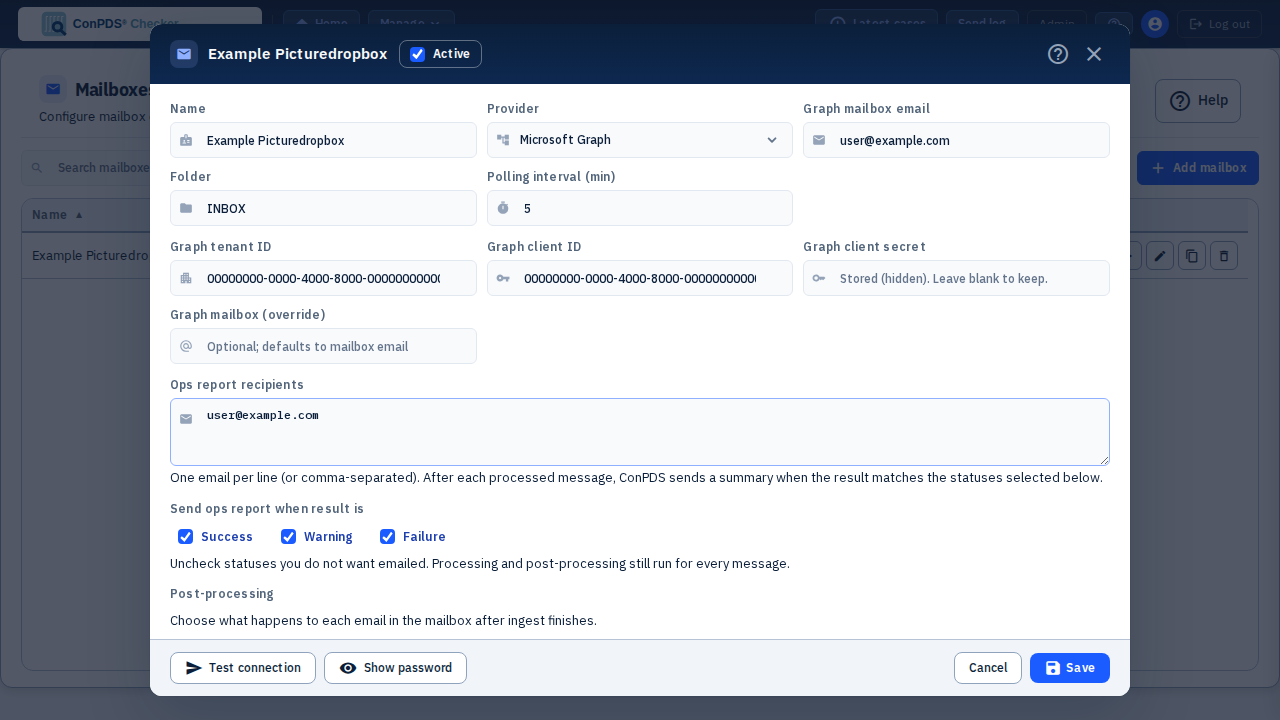
- Open Admin → Mailboxes → Add mailbox (or edit an existing mailbox).
- Provider: Microsoft Graph.
- Enter Graph tenant ID, Graph client ID, and Graph client secret from Steps 1–2.
- Graph mailbox email: the same primary SMTP address you added to
ConpdsMailboxAccessin Step 5. - Folder: usually
INBOX. - Click Test connection — expect ok (not
403 Forbidden). - Leave the mailbox inactive until you are ready to poll; imported configs always land inactive so two environments never poll the same inbox.
| ConPDS field | Azure / Exchange source |
|---|---|
| Graph tenant ID | App registration → Directory (tenant) ID |
| Graph client ID | App registration → Application (client) ID |
| Graph client secret | Certificates & secrets → current secret value |
| Graph mailbox email | PrimarySmtpAddress of the mailbox in the access group |
IMAP4 configuration
IMAP4 is a standard email protocol supported by most providers. Use IMAP when connecting to non-Microsoft mailboxes or when Microsoft Graph is not available.
Basic IMAP configuration
| Field | Description |
|---|---|
| Host | IMAP server hostname (e.g. imap.gmail.com, outlook.office365.com) |
| Port | Typically 993 (SSL), 143 (STARTTLS) |
| Username | Email address or IMAP username |
| Password | Email password or app-specific password |
| SSL/TLS | Enable SSL for port 993 (recommended) |
Common IMAP providers
Gmail
- Host:
imap.gmail.com - Port:
993 - SSL: Enabled
- Requires an App Password (not your regular Gmail password). Enable 2-Step Verification and generate an app password in Google Account settings.
Outlook.com / Hotmail
- Host:
outlook.office365.com - Port:
993 - SSL: Enabled
- May require enabling IMAP in account settings. For Microsoft 365, prefer Microsoft Graph.
Custom IMAP server
- Contact your email administrator for host, port, and encryption settings.
Security settings
- Use SSL — Encrypts the connection (port 993, recommended)
- Use STARTTLS — Upgrades port 143 to TLS
- Allow Insecure — Unencrypted connections (testing only)
- Host Allowlist / Blocklist — Restrict which IMAP hosts may be used
Never use Allow Insecure in production. Always use SSL (port 993) or STARTTLS (port 143).
Configuration steps
- Select Provider Type: IMAP4
- Enter IMAP Host and Port
- Enter Username and Password
- Enable Use SSL (993) or Use STARTTLS (143)
- (Optional) Configure Host Allowlist
- Click Test connection
General mailbox settings
These settings apply to all mailbox types.
Basic settings
| Setting | Description |
|---|---|
| Name | Descriptive label (e.g. "Operations Mailbox") |
| Folder | Folder to monitor (default: INBOX) |
| Polling interval | Minutes between checks (recommended: 5 for active mailboxes) |
| Active | Enable or disable polling |
Limits
| Setting | Description |
|---|---|
| Max messages per poll | Cap per polling cycle (default: 50) |
| Max attachments per message | Cap per email (default: 20) |
| Max attachment size | Bytes per attachment (optional; e.g. 10485760 = 10 MB) |
Security
| Setting | Description |
|---|---|
| Sender allowlist | Only process email from listed addresses or domains (e.g. @example.com) |
| Require secret token | Email must include a token in subject or body |
Post-processing policy
The post_processing_policy JSON object on the mailbox defines what happens to each email after processing is finalized (success, partial success, or failure). It is not part of mail rule JSON.
Set it in Tenant Admin → Mailboxes (JSON editor) or via PUT /api/v1/tenant-admin/mailboxes/{mailbox_id}.
{
  "post_process_policy": "mark_as_read_only",
  "processed_folder": "Processed",
  "failed_folder": "Ingest-Failed",
  "mark_seen_on_failure": true
}
You may use policy instead of post_process_policy (same meaning). The whole value may also be a plain string, e.g. "mark_as_read_only".
| Field | Type | Default | Description |
|---|---|---|---|
post_process_policy / policy | string | mark_as_read_only | Mode (see table below) |
processed_folder | string | "" | Folder to move to on success when mode is move_to_processed_folder |
failed_folder | string | "" | Folder to move to on failure when mode is move_to_failed_folder |
mark_seen_on_failure | boolean | true | When true, failed messages are still marked read (unless moved to failed_folder) |
Modes:
| Mode | On success | On failure |
|---|---|---|
mark_as_read_only (default) | Mark as read | Mark as read if mark_seen_on_failure, else no change |
move_to_processed_folder | Move to processed_folder if set; otherwise mark as read | Mark as read if mark_seen_on_failure, else no change |
move_to_failed_folder | Mark as read | Move to failed_folder if set; otherwise same as mark_seen_on_failure |
leave_unseen_on_failure | Mark as read | Mark as read only if mark_seen_on_failure is true |
There is no delete action in the current implementation.
Examples:
Mark read always (typical for picture dropboxes — empty {} is equivalent):
{
  "post_process_policy": "mark_as_read_only"
}
Move successful ingests, leave failures unread:
{
  "post_process_policy": "move_to_processed_folder",
  "processed_folder": "Processed",
  "mark_seen_on_failure": false
}
Quarantine failed messages:
{
  "post_process_policy": "move_to_failed_folder",
  "failed_folder": "Ingest-Failed",
  "mark_seen_on_failure": false
}
Requires Graph/IMAP provider support for mark_as_read and move_message on the configured folder.
Container OCR rules
Picture ingest rules can set ocr_enabled: true on the ingest_images action so Checker reads container numbers from photo attachments when they are not in the email subject. OCR API credentials are configured on the backend server only — not in the mailbox JSON.
See Mail rules → Container OCR and the Mailbox ingest FAQ.
Ops report recipients
Branded mailbox ingest ops reports (processing summary, gallery View case link, optional OCR block) are sent to addresses listed in report_recipients on the mailbox — not in mail rule JSON or inside the post-processing policy textarea.
| Where | How |
|---|---|
| Admin UI | Mailboxes editor — Ops report recipients (one e-mail per line) and Send ops report when result is (Success / Warning / Failure checkboxes) |
| Tenant Admin API | PUT /api/v1/tenant-admin/mailboxes/{mailbox_id} with "report_recipients": ["ops@example.com"] and optional "report_on_statuses": ["Warning", "Failure"] |
Reports are sent after a message is finalized, but only when the operator-facing result matches a selected status. These completions stay silent (no ops report): no rule matched, sender not on the allowlist, secret token missing from the message, or the message is a ConPDS-generated ingest report/notification (skip marker).
| Status | Typical meaning |
|---|---|
| Success | Processing completed with at least one new picture ingested, or EDI-only processing completed successfully with no photo ingest attempted |
| Warning | Partial success or empty photo ingest (matched ingest with zero uploaded) |
| Failure | Processing failed or completed with errors and no pictures |
Ops reports and spreadsheet batch reports append [conpds-ingest-skip] to the subject and set X-ConPDS-Ingest: skip. Sender notifications get the header only. If that mail is delivered back to a polled mailbox, Checker marks it read and does not run rules — unless the subject-token fallback is present and the message has a non-inline image or video attachment (then it is processed). After every ingest worker is on this release, the mailbox's own address may remain in Ops report recipients.
Default (backward compatible): all three statuses are enabled when report_on_statuses is omitted. Uncheck Success to stop routine “everything OK” e-mails; select only Failure for alert-style reporting; use Warning + Failure to skip successful ingests.
Example API body:
{
  "report_recipients": ["operations@example.com", "support@example.com"],
  "report_on_statuses": ["Warning", "Failure"],
  "post_processing_policy": {
    "post_process_policy": "mark_as_read_only"
  }
}
If all three checkboxes are off (or report_on_statuses is []), no ops report e-mails are sent even when recipients are listed. Ingest and post-processing still run for every message.
See Mailbox ingest FAQ for report contents.
Best practices
- Use Microsoft Graph when possible for Microsoft 365 mailboxes
- Test connections before saving
- Use Application Access Policies for every Graph mailbox (required for scoped app-only access)
- Verify with PowerShell (Step 6) before Test connection in the admin UI
- Set appropriate polling intervals — 5 minutes is usually sufficient
- Use sender allowlists on public-facing mailboxes
- Monitor Processing state regularly
- Use descriptive mailbox names
- Configure limits to prevent overload
- Rotate Graph client secrets before expiry
- Always use SSL/TLS for IMAP in production
Troubleshooting
Microsoft Graph: "Invalid credentials" or token errors
- Verify Graph tenant ID, Graph client ID, and Graph client secret in ConPDS (no leading/trailing spaces).
- Check the client secret has not expired in Azure → Certificates & secrets.
- Run the token step in Step 6. If it fails, fix Azure credentials before testing in ConPDS.
Microsoft Graph: "403 Forbidden" or connection_failed
Work through these in order:
- Admin consent — In Azure,
Mail.ReadandMail.ReadWritemust be Application permissions with status Granted (see Step 2). - Application Access Policy — Confirm a policy exists for your client ID (
Get-ApplicationAccessPolicy). - Group membership — The mailbox primary SMTP must be in the scope group (
Get-DistributionGroupMember). - Policy test —
Test-ApplicationAccessPolicy -Identity "mailbox@example.com" -AppId "YOUR-CLIENT-ID"must return Granted. - Propagation delay — If the test is Granted but Graph still returns "Blocked by tenant configured AppOnly AccessPolicy settings", wait 30 minutes to several hours (see Step 5). Mailboxes added after the policy was created are affected most often. ConPDS Test connection surfaces this as
graph_mailbox_access_deniedplus the Grapherror.message(not a generic urllibHTTP Error 403: Forbidden). Exchange Granted does not mean Graph REST is ready. - Direct Graph test — Run the script in Step 6. Do not rely on ConPDS alone until Graph succeeds there.
If conpds-picturedropbox@example.com succeeds but a newly added mailbox fails with the same app credentials, the app and Azure setup are fine — add the new mailbox to the existing scope group and wait for Graph propagation. Do not create a second Application Access Policy for the same app.
Microsoft Graph: Add-MailboxPermission — "User or group wasn't found"
The Application (client) ID is not a valid -User for Add-MailboxPermission. Use the Application Access Policy flow instead.
Microsoft Graph: Wrong mailbox address
ConPDS Graph mailbox email must match PrimarySmtpAddress from Exchange:
Get-Mailbox "mailbox@example.com" | Select-Object PrimarySmtpAddress, EmailAddresses
Aliases alone are not sufficient if they are not the primary address on the mailbox object.
IMAP: "Connection failed" or "Authentication failed"
- Verify host, port, username, and password
- For Gmail, use an App Password
- Ensure IMAP is enabled in account settings
- Verify SSL/TLS settings match the server
- Check firewall rules for outbound IMAP
IMAP: "Host not allowlisted" or "Host blocklisted"
- Add the IMAP host to the allowlist or remove from blocklist
- Check for typos (hostnames are case-sensitive)
Emails not being processed
- Verify the mailbox is Active
- Check polling interval — emails are only fetched on schedule
- Review Processing state
- Check sender allowlist
- Verify Mail rules are configured and active
Connection test succeeds but polling fails
- Check for rate limiting from the email provider
- Review error logs in Processing state
- Verify credentials have not changed
- Check for a poll lock (use Clear poll lock if needed)
See also: Mail rules, Processing state, Code mappings