Mail Rules
Complete guide to configuring Mail Rules for automated email processing.
Mail rules define how inbound email is processed after a Mailbox fetches it. Rules are evaluated in priority order (lower number = higher priority). Each mailbox can have multiple rules; rules can be enabled or disabled without deleting them.
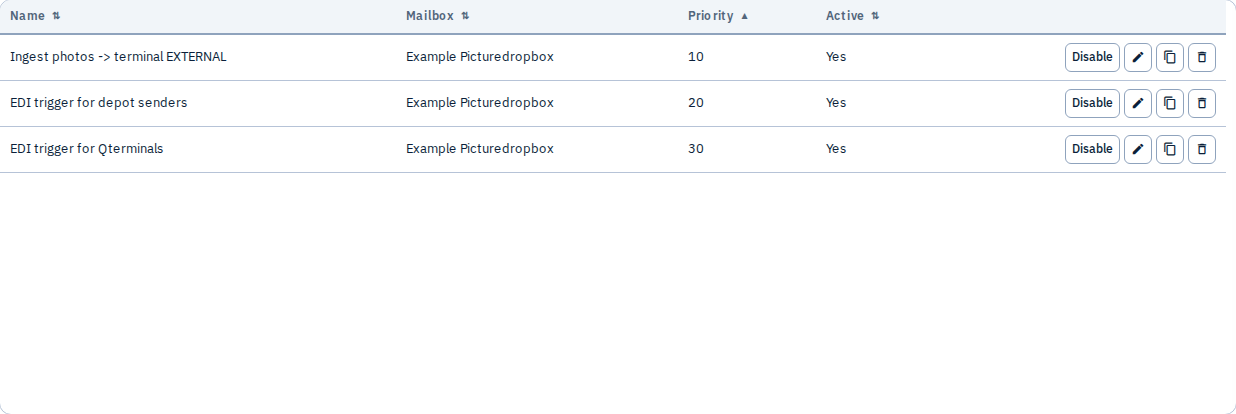
Matching behaviour: every active valid rule whose when criteria match is evaluated in priority order (lower number first). By default all matching rules run. Set "stop_processing_on_success": true on a rule to halt later rules when that rule’s actions succeed (or partially succeed). Failed / all-skipped rules do not stop the chain.
Simulate mailbox (dry-run)
From the Mail Rules list, select a mailbox in the filter, then Simulate mailbox — this dry-runs all active valid rules for that mailbox (same matching behaviour as live processing).
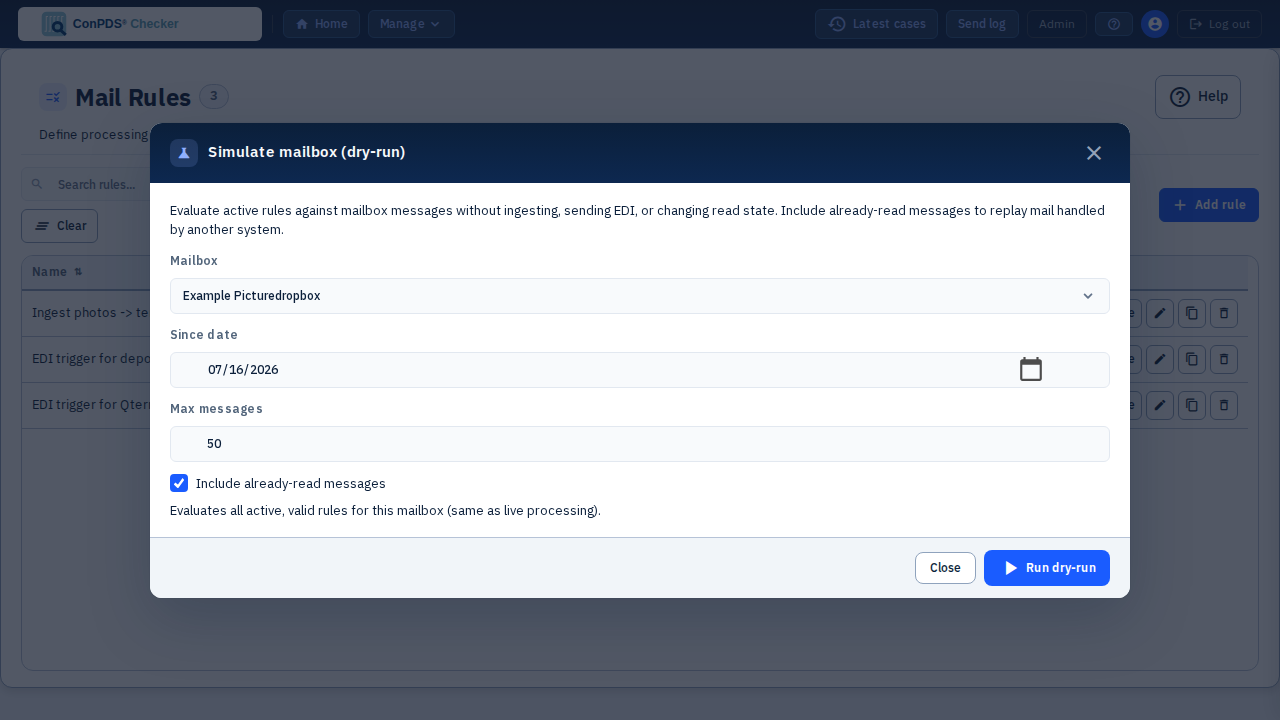
From Mail Rules → edit a rule → Simulate mailbox:
- Choose the mailbox and a since date (tenant calendar day).
- Leave Include already-read messages on to replay mail that another system already marked read.
- Run dry-run to see which messages match which rules and what actions would run — without ingesting pictures, sending EDI, notifying, or changing read/move state.
- Matched messages are listed first and highlighted. For each planned
search_pictures_and_send_ediaction, the report includes a gallery preview: picture count that would be sent, destination (after rewrite), terminal names, and case dates — still dry-run (no send). For each plannedingest_imagesaction, the report shows how many attachments would be ingested, the normalize/rescale policy (EXIF + fit ≤1280×760 / ≤760×1280 JPEG), and when bytes can be fetched, per-file original dimensions plus whether each would be downscaled. Video attachments (MP4/MOV/WebM) are listed as video — stored as-is (no rescale probe). - Optionally (editor only) limit evaluation to the current editor JSON only.
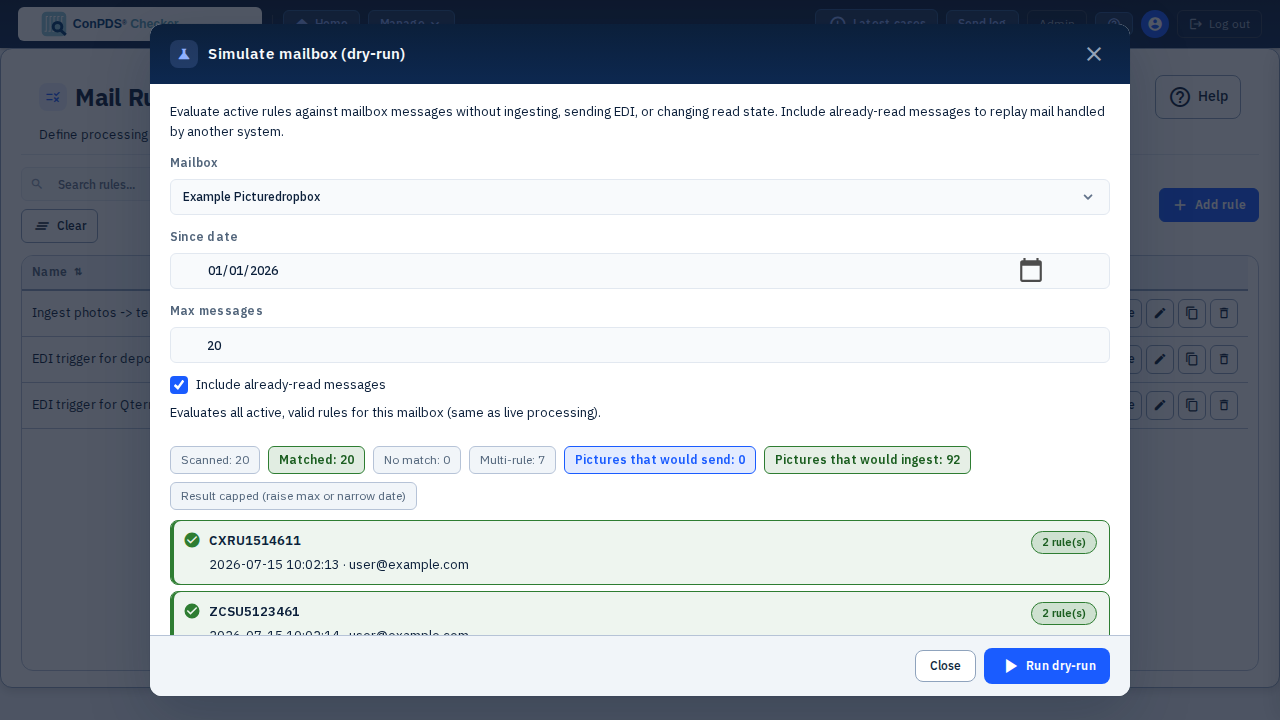
Use this to verify multi-rule priority setups (e.g. ingest vs EDI vs noreply) against real inbox traffic. Summary chips include Pictures that would send (EDI gallery hits) and Pictures that would ingest (eligible attachments across planned ingest actions).
After a real poll, open the same style of report for a finished run under Processing state → View results.
Playback (re-run processing for real) is not included in this release; remount messages as unread and force-poll if you need live reprocessing.
Rule editor (visual builder)
Tenant Admin → Mail Rules → edit a rule opens a tabbed editor:
| Tab | Purpose |
|---|---|
| Visual | Lay-friendly When, Extract, Then, and Advanced sections for all five registered actions |
| JSON | Raw rule_definition textarea — escape hatch; bidirectional sync with the visual tab on the same object |
| Assist | Draft-only AI help for a full rule definition (when enabled); applies suggestions into the editor only — never saves until you click Save |
The live What this rule does summary uses the same describeRule text as before. Validate, Test, and Simulate still call the existing APIs.
List-form extract: legacy rules whose extract is a JSON array (not { variables: … }) are preserved verbatim. The visual tab shows a banner and directs you to the JSON tab.
Regex assist (optional): pattern fields offer Help with pattern when AI_ASSIST_ENABLED=1 and OPENAI_API_KEY are set on the backend. Your description and any pasted sample snippet are sent to OpenAI to suggest a regex — never auto-applied. If Assist asks clarifying questions, answer them and continue; suggestions still require your confirmation.
Assist tab (optional): describe the rule you want. The service returns a draft definition you can apply into the Visual/JSON editor. It does not write the rule to the server by itself — review, then Save. When Assist is disabled on the host, the tab explains that AI assist is unavailable.
What are Mail Rules?
When an email matches a rule's conditions, the system executes actions such as:
- Extracting images from attachments and adding them to your picture database
- Parsing spreadsheet files (CSV/XLSX) and triggering EDI destinations
- Searching for pictures by container code and sending them via EDI
- Sending processing reports via email
Rule structure
Every rule has three main parts:
- When — Conditions that must be met for the rule to trigger
- Extract (optional) — Variables to extract from the email (e.g. container codes from subject)
- Then — Actions to execute when conditions match
Optional top-level flag:
stop_processing_on_success— whentrue, if this rule’s actions succeed (or partially succeed), later matching rules are not executed. Use on a high-priority ingest rule so depot EDI rules do not also run on the same photo email.
{
  "version": 1,
  "stop_processing_on_success": true,
  "when": {
    "type": "sender_email",
    "value": "operations@example.com"
  },
  "extract": {
    "variables": {
      "container_code": {
        "from": "subject",
        "regex": "([A-Z]{4}[0-9]{7})",
        "group": 1
      }
    }
  },
  "then": [
    {
      "action": "ingest_images",
      "config": {
        "target": {
          "container_code": "{container_code}",
          "terminal": "MAIN"
        }
      }
    }
  ]
}
Rule structure (detail)
The minimal shape without the stop flag:## Conditions (When)
Basic conditions
Sender email — Match a specific sender:
{ "type": "sender_email", "value": "operations@example.com" }
Sender domain — Match any address in a domain:
{ "type": "sender_domain", "value": "@example.com" }
Subject contains — Case-insensitive substring:
{ "type": "subject_contains", "value": "Container Report" }
Subject regex — Regular expression on subject:
{ "type": "subject_regex", "regex": "^(BEANR0F|NLRTM08|NLRTM10)$" }
Body contains:
{ "type": "body_contains", "value": "urgent" }
Has attachment type:
{ "type": "has_attachment_type", "value": ["image/jpeg", "image/png"] }
Field comparison — Operators: eq, ne, contains, matches, in, gt, gte, lt, lte:
{ "field": "subject", "op": "contains", "value": "CAIU" }
Combining conditions
All (AND):
{
  "all": [
    { "type": "sender_domain", "value": "@example.com" },
    { "type": "subject_contains", "value": "Container" }
  ]
}
Any (OR):
{
  "any": [
    { "type": "subject_contains", "value": "BEANR0F" },
    { "type": "subject_contains", "value": "NLRTM08" }
  ]
}
Not (negation):
{
  "not": { "type": "sender_domain", "value": "@spam.com" }
}
Variable extraction
Extract values from email fields to use in actions:
{
  "extract": {
    "variables": {
      "container_code": {
        "from": "subject",
        "regex": "([A-Z]{4}[0-9]{7})",
        "group": 1,
        "required": true
      },
      "terminal": {
        "from": "subject",
        "regex": "Terminal: ([A-Z]+)",
        "group": 1,
        "default": "MAIN"
      }
    }
  }
}
| Field | Description |
|---|---|
| from | Field to extract from (subject, body, sender, etc.) |
| regex | Pattern with capture groups |
| group | Capture group index (1 = first group) |
| required | Rule fails if variable cannot be extracted |
| default | Value if extraction fails |
Actions (Then)
1. Ingest images
Extract image and video attachments and add them to the picture database:
{
  "action": "ingest_images",
  "config": {
    "target": {
      "container_code": "{container_code}",
      "terminal": "MAIN",
      "case_date": "{case_date}",
      "picture_source": "Mailbox",
      "picture_creator": "Mailbox: Operations"
    },
    "attachment_filter": {
      "content_types": ["image/", "video/"],
      "max_size_bytes": 10485760
    },
    "processing": {
      "max_resolution": 1280,
      "jpeg_quality": 90
    }
  }
}
Supported media types
The same file-type policy applies everywhere media enters Checker (manual upload, integration API, mailbox ingest):
| Kind | Formats | Handling |
|---|---|---|
| Pictures | JPEG, PNG, GIF | Normalized to JPEG (EXIF orientation + downscale) |
| Videos | MP4, MOV, WebM | Stored as-is — no rescaling, max 10 MB, never scanned by OCR |
Attachments labelled application/octet-stream (common from Outlook) are
identified by file content, so a real JPEG or MP4 is still accepted. Any other
file type (PDF, WebP, HEIC, office documents, …) is rejected. Video
attachments count toward the ingest totals and appear in the dry-run report
marked as video — stored as-is.
Container OCR — rule key ocr_enabled
Set ocr_enabled to true on the ingest_images action to enable container OCR when the container number is missing or has an invalid ISO check digit. Default is false (container must come from the rule extract block).
In rule JSON: "ocr_enabled": true (search this help site for Container OCR or ocr enabled — do not paste JSON into the search box).
Use ocr_enabled: true for picture-dropbox rules that accept emails without a container in the subject — OCR Scenario B discovers the container from photo attachments. Use ocr_enabled: false (or omit the key) when the container is always taken from the subject.
Pair with fail_if_no_attachments: true so messages with no eligible photos are marked failed instead of skipped.
| Config key | Default | Description |
|---|---|---|
ocr_enabled | false | Enable container OCR Scenarios A1/A2/B |
fail_if_no_attachments | false | When true, no eligible attachments → failed (not skipped) |
split_case_per_message | false | When true, each email gets its own gallery case card (deterministic upload session id per message). When omitted/false, attachments merge into the terminal/container/day case as before. [CR-20260715] |
OCR scan limits (85% minimum confidence, 25 attachments max per message) are fixed in the backend — not configurable in rule JSON.
OCR credentials and endpoint URL are configured on the backend server only (deploy/install env) — not in rule JSON or tenant-admin UI.
| Scenario | Stated + valid check digit | Stated + bad digit | No stated |
|---|---|---|---|
| OCR calls | 0 | Up to 25 attachments | Up to 25 attachments |
| Container used | Stated | OCR result (or stated if OCR unavailable) | OCR result |
See Mailbox ingest FAQ for Scenarios A1/A2/B, photo limits, and ops/sender emails.
Minimal OCR rule fragment (container discovered from photos — Scenario B):
"ocr_enabled": true,
"fail_if_no_attachments": true
Standard rule with OCR + ops reporting:
Configure report_recipients on the Mailbox (not in rule JSON) for branded ops emails with View case link.
{
  "extract": {
    "variables": {
      "container_code": {
        "from": "subject",
        "regex": "([A-Z]{4}[0-9]{7})",
        "group": 1,
        "normalize_container_code": true
      }
    }
  },
  "then": [
    {
      "action": "ingest_images",
      "config": {
        "ocr_enabled": true,
        "fail_if_no_attachments": true,
        "target": { "container_code": "{container_code}", "terminal": "MAIN" }
      }
    },
    {
      "action": "send_notification",
      "config": {
        "to": "{sender_email}",
        "send_when_picture_count": "nonzero"
      }
    }
  ]
}
send_notification uses a simple branded template by default (simple_body: true). Set "simple_body": false only if you need a custom subject/body.
Every send_notification email appends a source footer so you can tell which tenant and rule produced it, for example:
---
[zwennis.test.conpds.com]
Rule: Seamark / Kramer EDI trigger
You can also use {tenant_host} and {rule_name} in a custom subject or body. The footer is added automatically even when those placeholders are omitted.
2. Parse spreadsheet
Parse CSV or XLSX attachments and process each row via Code mappings:
{
  "action": "parse_spreadsheet",
  "config": {
    "attachment_filter": {
      "content_types": ["application/vnd.openxmlformats-officedocument.spreadsheetml.sheet"],
      "filename_pattern": "*.xlsx"
    },
    "parser": {
      "type": "xlsx",
      "sheet": 0,
      "skip_rows": 0,
      "max_rows": 0
    },
    "column_map": {
      "customer": "client_name",
      "containerno": "container_code"
    }
  }
}
Key configuration notes:
- parser.type —
csvorxlsx - column_map — Maps spreadsheet columns to internal fields
- use_code_mappings: true (default) — EDI destination and days_back come from each code mapping
- fallback_enabled — Use tenant fallback destination when no mapping matches
- use_code_mappings: false — Each row must include days_back (1–365)
- reporting — Optional summary email with CSV/JSONL attachments after all chunks finish
- edi_fields ([CR-20260917]) — Optional list of
{ "name", "aliases" }that maps spreadsheet columns to EDI{placeholders}(filename / MAIL subject+body only; not To/CC or FTP/LOCAL directories). Blank cells are skipped. See EDI params for the rendering matrix and rollout notes. - require_spreadsheet_placeholders ([CR-20260923], default off) — When enabled, a row's destination is skipped (
missing_required_edi_placeholder) instead of sent with a blank token if a placeholder the destination's mask/subject/body actually needs is not supplied by the spreadsheet. See EDI params for the skip reason and rollout notes. - Legacy rule fields days_back and send_when_no_pictures on
parse_spreadsheetare ignored — use code mappings instead
Batch report email (parse_spreadsheet)
When a rule includes parse_spreadsheet, the visual editor shows Batch report email fields (To/CC/subject, CSV/JSONL attachments) in the action card — the same options previously available via the spreadsheet reporting assistant. Changes write into the rule’s reporting block automatically.
Spreadsheet EDI fields (parse_spreadsheet)
The action card also has an EDI fields section: declare up to eight snake_case field names and optional column aliases. Values appear in batch CSV via edi_fields.<name> or bare <name> (top-level detail keys still win on collision). Reserved built-in names are rejected at save time.
3. Search pictures and send EDI
Search by container code and send via EDI (useful when email has no attachments):
{
  "action": "search_pictures_and_send_edi",
  "config": {
    "container_code": "{container_code}",
    "days_back": 30,
    "terminals": ["MAIN", "GATE"],
    "destination": "EOS"
  }
}
When the subject uses a code that is not the EDI DEST_NAME in Tenant Admin, map it with destination_rewrite (alias destination_aliases also accepted):
{
  "action": "search_pictures_and_send_edi",
  "config": {
    "container_code": "{container_code}",
    "destination": "{edi_dest}",
    "destination_rewrite": {
      "BEANR0F": "FLORENS"
    },
    "days_back": 30,
    "lookup_all_terminals": true,
    "exclude_terminals": ["POST-REPAIR"]
  }
}
Rule validation and runtime both apply the rewrite (case-insensitive keys) before checking/sending to EDI.
4. Send report
Email a processing report:
{
  "action": "send_report",
  "config": {
    "to": "operations@example.com",
    "subject": "Processed: {container_code}",
    "include_logs": true
  }
}
Complete examples
Example 1: Extract images from specific sender
When operations@example.com sends an email whose subject mentions “Container” and includes a container number, Checker saves the attached photos to that container in the gallery.
{
  "when": {
    "all": [
      { "type": "sender_email", "value": "operations@example.com" },
      { "type": "subject_contains", "value": "Container" }
    ]
  },
  "extract": {
    "variables": {
      "container_code": {
        "from": "subject",
        "regex": "([A-Z]{4}[0-9]{7})",
        "group": 1,
        "required": true
      }
    }
  },
  "then": [
    {
      "action": "ingest_images",
      "config": {
        "target": {
          "container_code": "{container_code}",
          "terminal": "MAIN",
          "case_date": "2026-01-20",
          "picture_source": "Mailbox",
          "picture_creator": "Mailbox: Operations"
        },
        "attachment_filter": {
          "content_types": ["image/jpeg", "image/png"]
        }
      }
    }
  ]
}
Example 2: Process spreadsheet from company domain
When anyone at @example.com sends an Excel file (.xlsx), Checker reads each row (customer + container), looks up the customer in your code mappings, and sends the matching pictures to the configured EDI destination — no photos are attached to the email itself.
{
  "when": {
    "all": [
      { "type": "sender_domain", "value": "@example.com" },
      {
        "type": "has_attachment_type",
        "value": ["application/vnd.openxmlformats-officedocument.spreadsheetml.sheet"]
      }
    ]
  },
  "then": [
    {
      "action": "parse_spreadsheet",
      "config": {
        "parser": { "type": "xlsx", "sheet": 0 },
        "column_map": {
          "customer": "client_name",
          "containerno": "container_code"
        }
      }
    }
  ]
}
Example 3: EDI for specific subject patterns
When selected depot senders email with a terminal code and container number in the subject (but no photo attachments), Checker finds pictures already stored for that container and sends them to the EOS EDI destination.
{
  "when": {
    "all": [
      {
        "any": [
          { "type": "sender_email", "value": "operations@depot1.example.com" },
          { "type": "sender_email", "value": "notifications@depot2.example.com" }
        ]
      },
      { "type": "subject_regex", "regex": "^(BEANR0F|NLRTM08|NLRTM10)$" },
      { "type": "subject_contains", "value": "CAIU" }
    ]
  },
  "extract": {
    "variables": {
      "container_code": {
        "from": "subject",
        "regex": "([A-Z]{4}[0-9]{7})",
        "group": 1,
        "required": true
      }
    }
  },
  "then": [
    {
      "action": "search_pictures_and_send_edi",
      "config": {
        "container_code": "{container_code}",
        "days_back": 30,
        "terminals": ["*"],
        "destination": "EOS"
      }
    }
  ]
}
Best practices
- Use specific conditions — Combine sender and subject checks when possible
- Validate before saving — Use the Validate button in the Admin UI
- Set priorities — Specific rules: lower numbers; general rules: higher numbers
- Use variable extraction — Reuse rules across senders
- Start simple — Add complexity incrementally
- Monitor Processing state
- Use descriptive rule names
Troubleshooting
Rule not triggering?
- Check the rule is active (
is_active: true) - Verify conditions match the test email exactly
- Check rule priority — a higher-priority rule may match first
- Review Processing state for other rules on the same message
Variable extraction failing?
- Test regex with an online regex tester
- Ensure capture group numbering is correct (
group: 1= first parentheses) - Set
"required": falseand provide a"default"for optional variables
Actions not executing?
- Check Processing state for error messages
- Verify required fields (container_code, terminal, etc.)
- Ensure Code mappings exist for
parse_spreadsheet - Verify EDI destinations are configured for
search_pictures_and_send_edi
See also: Mailboxes, Processing state, Code mappings