Configuration Export / Import
Move tested tenant configuration between systems (for example from a staging host to production) without re-entering everything by hand.
The feature lives on its own page: open the Admin menu and choose Config Export / Import. From there you can export any combination of sections and import a configuration file.
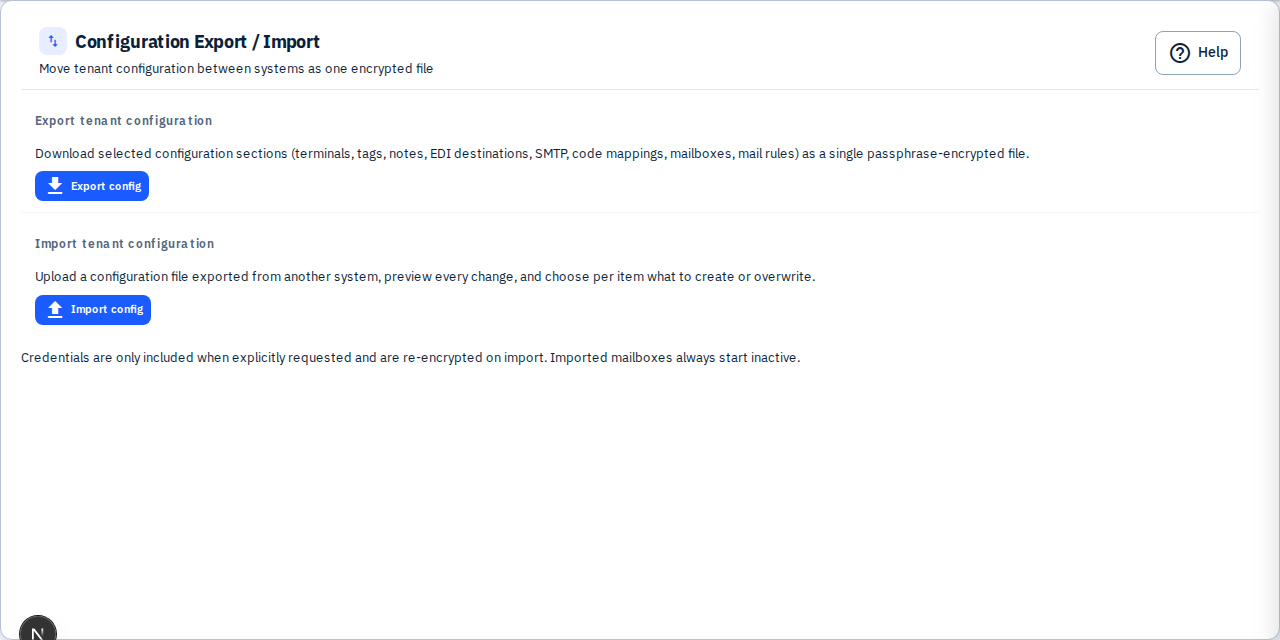
The Mailboxes, EDI, and SMTP admin pages also have Export config / Import config shortcuts in their toolbars — these open the same wizard with that page's sections pre-selected (Mailboxes → mailboxes + mail rules, EDI → EDI destinations + terminals, SMTP → SMTP configurations + routing). You can still tick or untick any section before exporting.
What can be transferred
| Section | Matched by |
|---|---|
| Terminals, Tags, Notes | name |
| EDI destinations | terminal + destination name (upper-case, spaces removed from the terminal; ALL is its own scope) |
| SMTP configurations + routing | config name |
| Mailboxes | mailbox name, or the preserved ID |
| Mail rules | preserved ID, or the rule name on the matched mailbox (revalidated on import) |
| Code mappings | client + EDI destination, or the preserved ID |
| Code mapping fallback | the single fallback entry |
Matching is about the configuration you see, not the internal ID: a mailbox, code mapping, or mail rule that already exists on this system is recognised even when the file was exported from a system where it had a different ID. That is what makes Overwrite available instead of silently adding a second copy.
Overwrite always updates the item that is already here: the existing mailbox / mapping / rule keeps its ID, and an EDI destination keeps the terminal and destination name exactly as spelled on this system. Importing the same file twice therefore reports everything as Identical.
When the identity is ambiguous the item is reported as an Error and nothing is written:
| Reported | Meaning | What to do |
|---|---|---|
ambiguous_name_match | The file's ID points at one item while the name points at another, or two items here carry the same name | Rename or remove one of them, then preview again |
duplicate_target_key | Two items in the file resolve to the same item here (for example two mailbox names differing only in capitalisation) | Fix the source configuration so the two items are distinct |
Users, devices, integration keys, and processing history are not part of the export — identities and runtime state stay bound to each system.
Exporting
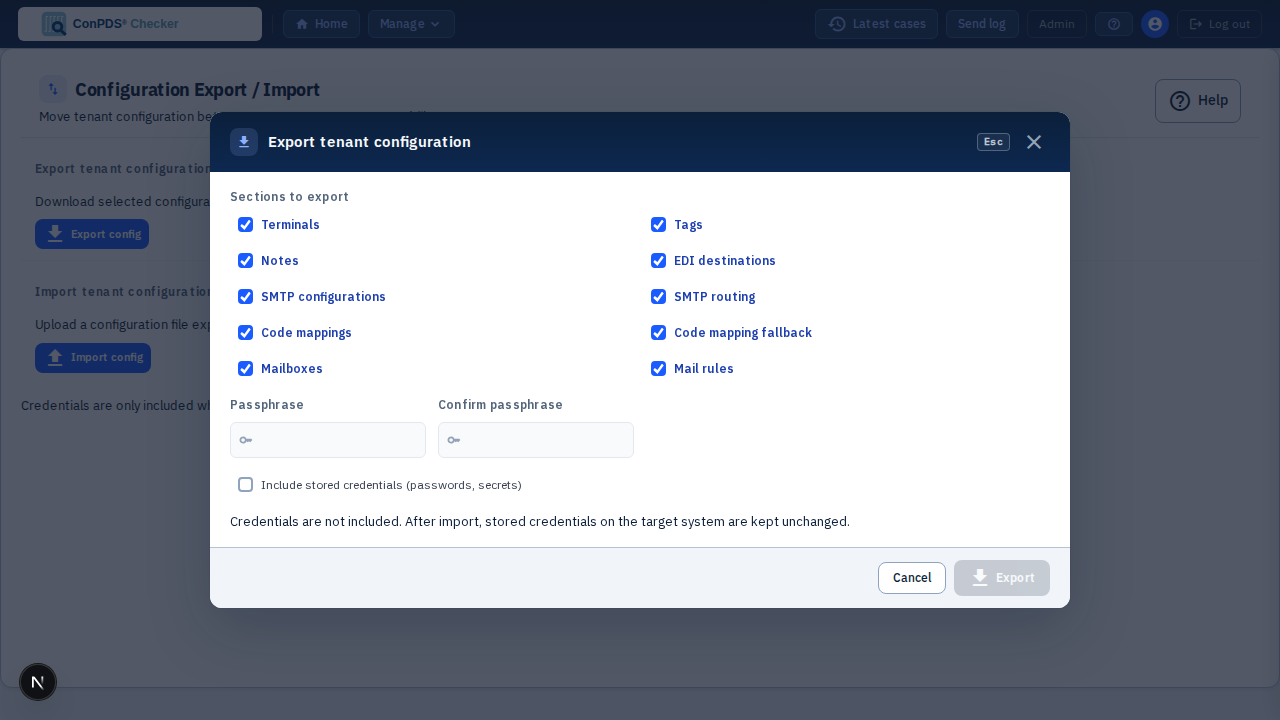
- Open Export config, tick the sections you want.
- Enter a passphrase twice (minimum 12 characters). The whole file is encrypted with it — without the passphrase the file cannot be read, and there is no recovery.
- Optionally tick Include stored credentials. This puts mail, EDI, and SMTP passwords/secrets inside the encrypted file and requires re-entering your login password first. Leave it off if the target system already has (or will get) its own credentials.
- Click Export — a
config-<tenant>-<date>.cpcfgfile downloads.
Share the passphrase out-of-band (not in the same email as the file). The server never stores it.
Importing
Import is always a two-step process — nothing is written until you confirm:
- Open Import config, choose the
.cpcfgfile and enter its passphrase, then click Preview. - The preview classifies every item:
- New — will be created (untick to skip)
- Identical — already the same on this system; always skipped
- Conflict — exists with different values; skipped unless you tick Overwrite (per item, or "Overwrite all conflicts")
- Error — invalid item (reason shown); never applied
- Click Apply import and review the per-item results.
Duplicates are never created — items are matched by the identity described above, and re-importing the same file reports everything as identical.
Things to know
- Imported mailboxes always arrive disabled so two systems never poll the same inbox. Enable them explicitly on the target after switching off the source.
- Microsoft Graph mailboxes on a new tenant still need that tenant's Exchange Application Access Policy: add each mailbox to the scope group on the target environment before Test connection will succeed. See Mailboxes → Microsoft Graph setup.
- Credentials are preserved on overwrite when the export was made without secrets: the target keeps its stored passwords.
- Mail rules follow their mailbox. When a mailbox in the file matches one that already exists here, the rules imported with it are attached to the existing mailbox — also while you are still in preview.
- Mail rules are revalidated by the target system; rules referencing a mailbox that is neither on the target nor in the same import are reported as errors.
- Cross-tenant files (exported from a different tenant) require an extra confirmation checkbox before apply.
- Every import is recorded in the Audit log with per-section counts.