Tags
Tags are short labels attached to inspection cases (for example damage type, workflow stage, or customer category). Users can filter the Gallery by tag and apply tags during upload or inline editing.
The example below shows three tags (Damage, Reefer Check, Urgent) each assigned to terminal DRANTWERP — the Terminals column shows every terminal the tag has been linked to, with an inline + Terminal control to add more.
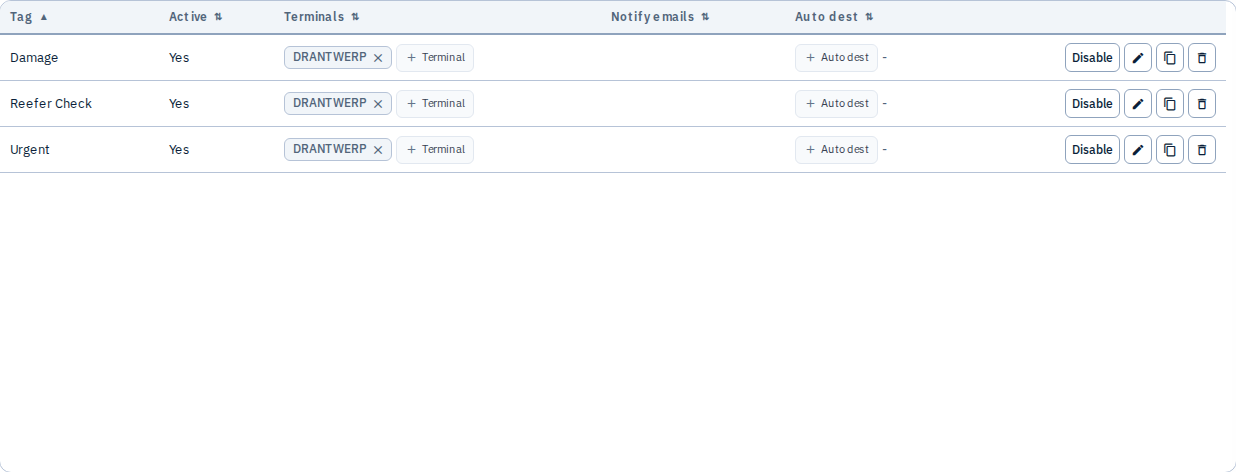
What you can do
- Create tags with a name (no colour field — tags render as plain chips everywhere they appear)
- Assign terminals inline from this list (chip
+ Terminal), or from a tag's edit modal, or from the Terminals page itself — all three write to the same underlying assignment, so they always stay in sync - Configure auto destinations — tags can trigger automatic sends to EDI destinations when applied
- Enable or disable tags without removing historical data
- Delete unused tags
When to use tags
- Standardise vocabulary across shifts and sites
- Drive automated EDI routing (combined with auto destination settings)
- Restrict visibility for guest users via tag-scoped access
Terminal assignment
Terminal assignment can also be edited from the Terminals page: open a terminal and use Select tags to pick from all tenant tags. Editing DRANTWERP below shows the same Damage, Reefer Check, Urgent tags as chips — this is the same assignment shown on the Tags list above, just from the other side of the relationship.
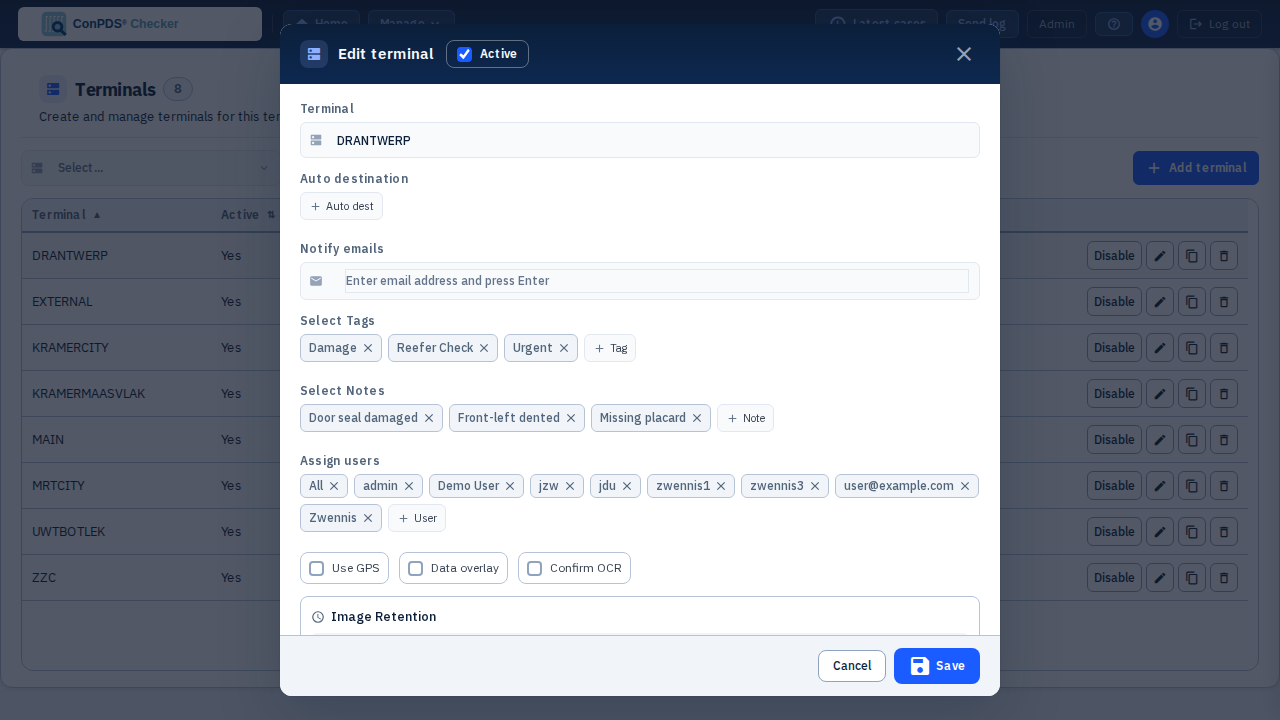
See Terminals for the full terminal edit form.
Using tags on case cards
Once a tag is created and active, it appears in the Gallery case card's "+ Tag" dropdown for every user — see Case actions → Tags for the end-user workflow and a screenshot of the dropdown in use.
Mobile app
Tags are stored per terminal as a comma-separated list in the tenant database. The mobile app does not edit this list — it loads options from the API.
| Step | Behaviour |
|---|---|
Device calls POST /api/v1/mobile/tags | Passes terminal code |
Response tags[] | Split from tenant tag definitions scoped to that terminal |
| User selects tags on device | Stored on each uploaded picture / case metadata |
| Auto destinations | Tags configured with auto-send still trigger server-side EDI after upload |
| EDI actions on device | Not configured on Tags page — see EDI; mobile loads actions[] from /tags based on terminal-scoped destinations |
Tags with WEB_ONLY or input-gated EDI destinations are unrelated to tag chips — they affect actions (see Notes and EDI).
Tips
- Keep tag names short and meaningful — they appear on case cards and in exports
- Prefer a controlled list managed here rather than free-text variations in remarks
- Review auto-destination links when you change EDI setup