Register the mobile app (Customer PIN)
Use this page when field staff ask how to register the mobile app or need the Customer PIN. The PIN links phones and tablets to your tenant; administrators approve each device before it can upload pictures.
Download ConPDS Checker first from the App Store or Google Play, then return here for registration.
Open Admin → Customer PIN in the web app and read the values on screen to the person registering their device. Tenant administrators can also use Email setup instructions on that page to send App Store links, Google Play links, and the PIN automatically.
On Admin → Customer PIN, click Email setup instructions next to the store links. Enter the field worker's email and choose iPhone / iPad, Android, or Both — the PIN is looked up automatically from your tenant.
Search this help site
| Search for | Finds |
|---|---|
| download mobile app | Download the mobile app — App Store and Google Play |
| register mobile app | This page — PIN entry and onboarding steps |
| customer pin | This page |
| email setup instructions | This page — Email setup instructions on Admin → Customer PIN (store links, PIN, device type) |
| waiting for approval | Step 3 below; admins use Devices to approve |
| approve device | Devices — administrator approval workflow |
What is shown on Admin → Customer PIN
- Site title — Your organisation name as shown in the app
- Customer ID — Tenant identifier
- Customer PIN — Secret code entered during mobile app registration
How staff use the PIN
1. Register the device
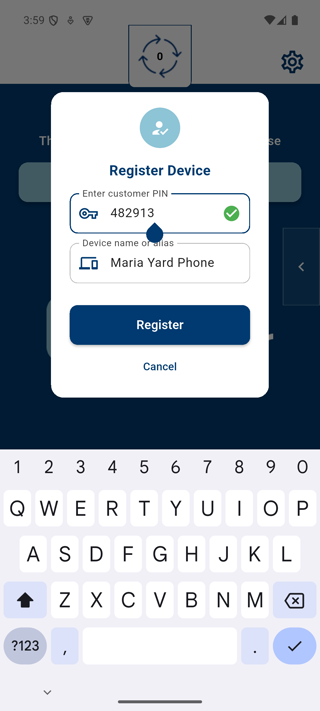
Open the ConPDS Checker mobile app. On first launch, tap to register and enter the Customer PIN from this page, plus a short device name (for example the user's name and phone model).
2. Select a terminal
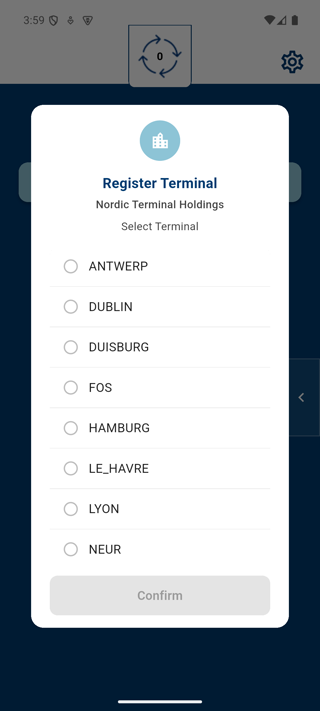
If your organisation has more than one terminal, the app asks which location this phone belongs to. Pick the correct terminal from the list, then confirm.
3. Wait for administrator approval
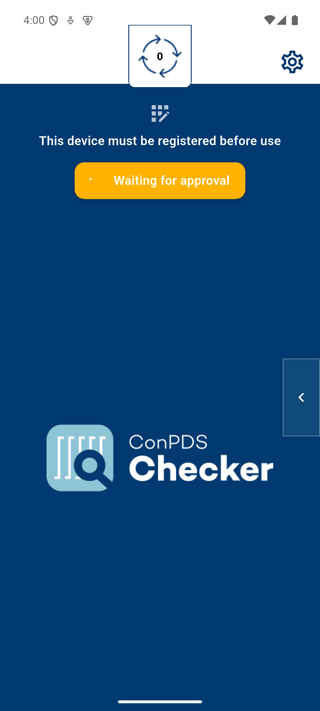
After registration, the app shows Waiting for approval. The device cannot upload pictures yet.
A tenant administrator must approve the request under Devices. The Admin button in the web app shows a badge when approvals are waiting.
4. Start capturing photos
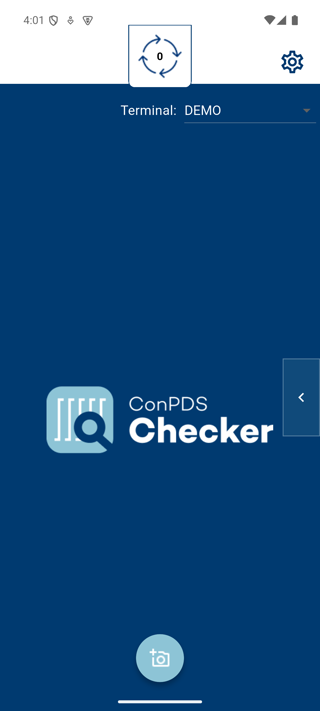
Once approved, the home screen is ready. The selected terminal appears at the top; staff can tap the camera button to begin inspection photos.
Security
- Treat the PIN like a shared gate code — distribute only to authorised staff
- Rotate or restrict access through your ConPDS administrator if the PIN may have leaked
- Approved devices still require administrator approval before uploads are accepted
See also: Devices