Picture Notes, Comments, and Geo Tags
Each picture in a case can carry structured notes, a free-text comment (remark), and optionally a geo tag when GPS coordinates were captured with the image (typically from a mobile device).
This page covers what you see on thumbnails, how to expand summaries, and how to edit metadata without opening the full-screen viewer.
At a glance on thumbnails
When a picture has notes or a comment, a summary bar appears below the thumbnail image:
- Notes chip — shows how many predefined notes are attached (green note icon)
- Comment chip — shows when a remark is present (comment icon)
- Chevron — click to expand or collapse the full notes list and comment text
Colored indicator badges on the top-right of the thumbnail image show the same information at a glance, plus optional geo (location pin) when GPS data exists.
Expand notes on one thumbnail
Click the summary bar (chips + chevron) on any thumbnail to unfold the details:
- NOTES — predefined note labels as chips (picked from the built-in list described below)
- COMMENT — the remark text; click the comment to copy it to the clipboard
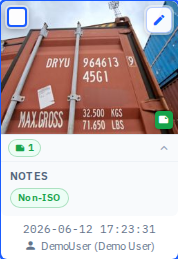
Expand notes on every thumbnail in a case
When at least one picture in the case has notes, the case card shows an Expand notes quick action. Use it to open (or Collapse notes to close) the summary bar on all thumbnails in that case at once.
Indicator badges
The strip on the top-right of each thumbnail can include:
| Badge | Meaning |
|---|---|
| Note (green) | One or more predefined notes |
| Comment | A remark is set |
| Place (amber) | GPS coordinates available — click to open the map |
| Posted / Hidden | Workflow status indicators |
Edit notes and comments (picture edit modal)
Hover a thumbnail and click the edit (pencil) button to open the Picture details modal. From here you can:
- Add note — pick from a fixed, built-in set of common inspection labels (
Big hole,Non-ISO,TestNote,Small hole,Already damaged,Big dent,Overheight,Missing seal) - Comment — type up to 50 characters of free text
- Post / Hide — change picture status when your role allows it
Changes are saved when you click Save (or press Enter in the comment field).
You can also edit notes and comments from the details panel inside the full-screen Lightbox viewer.
Note: This built-in note list is separate from the note presets configured under Tenant Admin → Notes, which drive the mobile app's note picker, Gallery/Upload History note filters, and terminal default notes — not this picker. See Notes → Web picture notes vs. this list for details.
Geo tags (GPS)
Pictures uploaded with GPS metadata (most often from the mobile app) show an amber place indicator on the thumbnail. Click it to open a map modal with coordinates, a map pin, reverse-geocoded address when available, and copy buttons for coordinates and address.
To search for cases or pictures with GPS data, use Has geo tag under advanced filters — see Searching and Filters.
Note: Geo tags come from device GPS at capture time. They cannot be typed in manually on the web; pictures without coordinates will not show the place indicator.
Related topics
- Lightbox viewer — full-screen preview, annotations, and details panel
- Case actions — tags, license plate, and bulk operations
- Tenant Admin → Notes — configure note presets for mobile, filters, and terminal defaults