Email Sending
Send inspection pictures via email with attachments or share links using the Send to modal.
Opening the Send Modal
- Select pictures in a case (or use Send all in the case header to send every picture in the case)
- Click Send in the selection bar or Send all (N) in the case header
- In the Send to modal, choose New mail from frequent/latest chips or the destination dropdown
Sending with Attachments
- Select New mail as the destination
- Compose the email:
- To — Primary recipients (type addresses, use suggestions, or open the address book)
- CC — Carbon copy recipients (same address book button as To)
- Subject — Email subject line
- Body — Email message (optional)
- Selected pictures are attached automatically
- Click Send
Address book picker
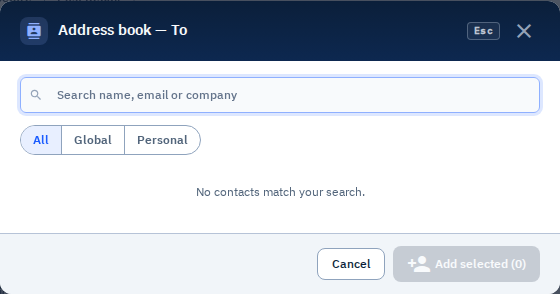
Beside To and CC, the contacts button (Open address book) opens a picker over the Send modal:
- Search by name, email, or company (or browse without a query)
- Filter All, Global (tenant Address Book), or Personal (My Contacts)
- Multi-select rows — badges show Global, Personal, or Both when the same address exists in both books
- Add selected inserts those addresses into the field you opened from
Typing in To/CC still shows the same consolidated suggestions (one row per address, with the same source badges). Tenant-wide contacts are maintained under Tenant Admin → Address Book; personal contacts under My Contacts in the account menu.
Sending with Share Links
Instead of attachments, you can send share links:
- Follow the steps above to open New mail
- Enable Send link instead of attachments
- Set expiry days for the share link
- Optionally enable Notify me when link is opened so you get an email on first access
- Click Send — recipients receive a branded email (same look as upload notifications) with share details and a View pictures online button instead of attached files
Personal Contacts
Save frequently used email addresses:
- Add from send flow — Valid addresses can be saved to My Contacts after sending
- Address book / typeahead — Browse or search Global and Personal contacts (see above)
- Manage contacts — Open My Contacts from the account menu to edit or remove saved addresses
Email Limits
Outbound delivery uses your tenant’s SMTP configuration. MAIL-type EDI destinations can pin a specific config via SMTP_CONFIG_PICTURES — see EDI Params.
- File size — Large attachments may be rejected by email servers
- Recipient limits — Some systems limit the number of recipients
- Attachment count — Very large numbers of pictures may need to be sent as share links
Tip: For large numbers of pictures or large file sizes, consider using share links instead of attachments to avoid email server limits.
Note: Email delivery depends on external email servers. Delivery failures are logged in the Send Log.